Fixed assets
Record fixed assets, let KontoVexa calculate the depreciation plan, post the depreciation and write assets off when sold or scrapped.
Under Fixed assets you keep your asset register: equipment, furniture, software or vehicles that serve your business for more than a year. Their cost does not reduce your profit all at once but is spread over the useful life. KontoVexa calculates this depreciation, posts it and supplies the figures for the tax forms.
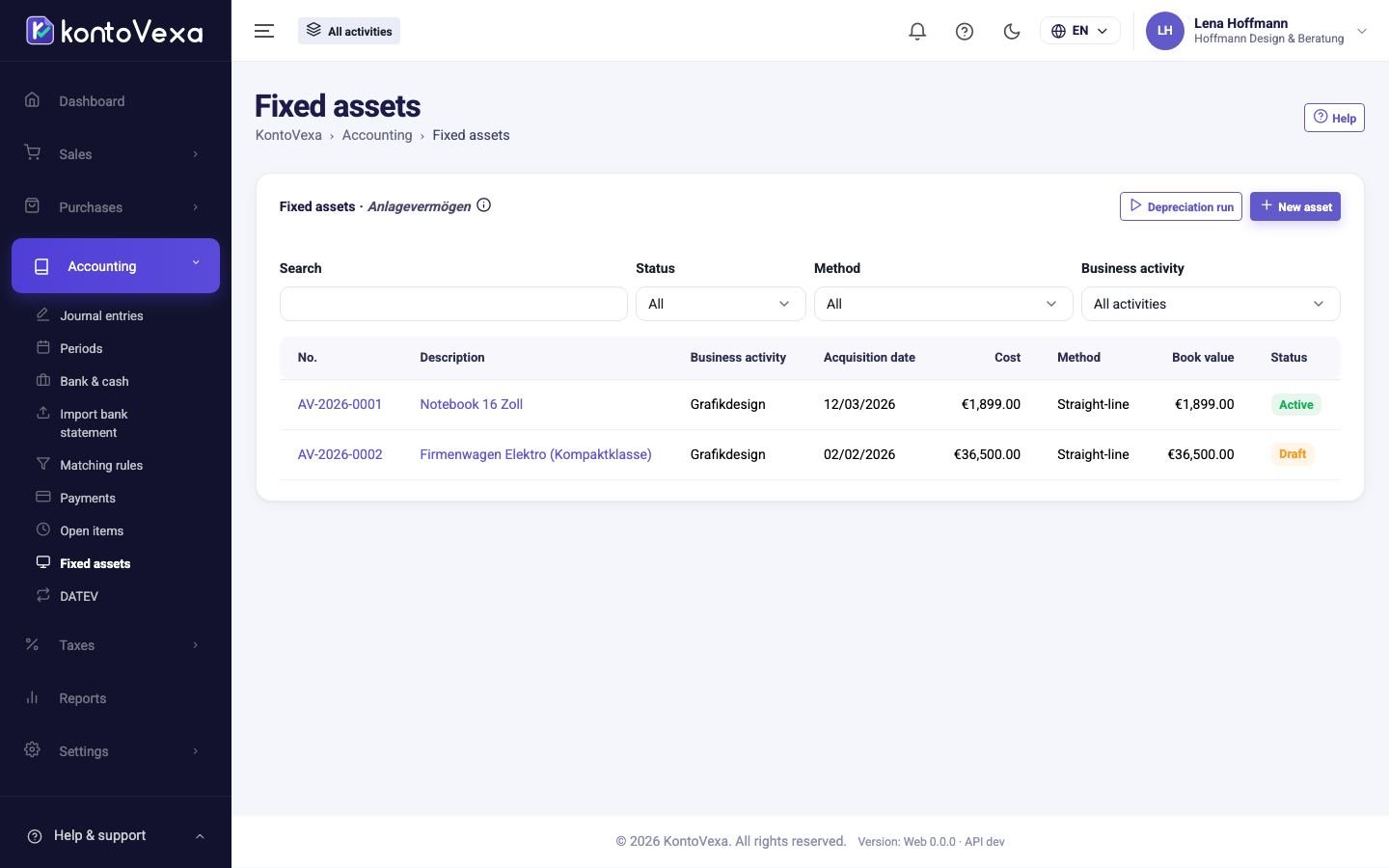
Create a fixed asset
The easiest way is to create the asset straight from an expense (see Expenses): cost and date are then taken from the document. To do it by hand:
- Click New asset.
- Fill in Description, Business activity and Asset class.
- Enter Acquisition date and Acquisition cost (net).
- Read the Suggestion that KontoVexa calculates from amount, date and asset class, and accept it with Apply suggestion or choose yourself under Method.
- Click Save draft. As long as the asset is a draft, you can change everything.
- Check the Depreciation plan below the form and click Activate. This fixes the plan.
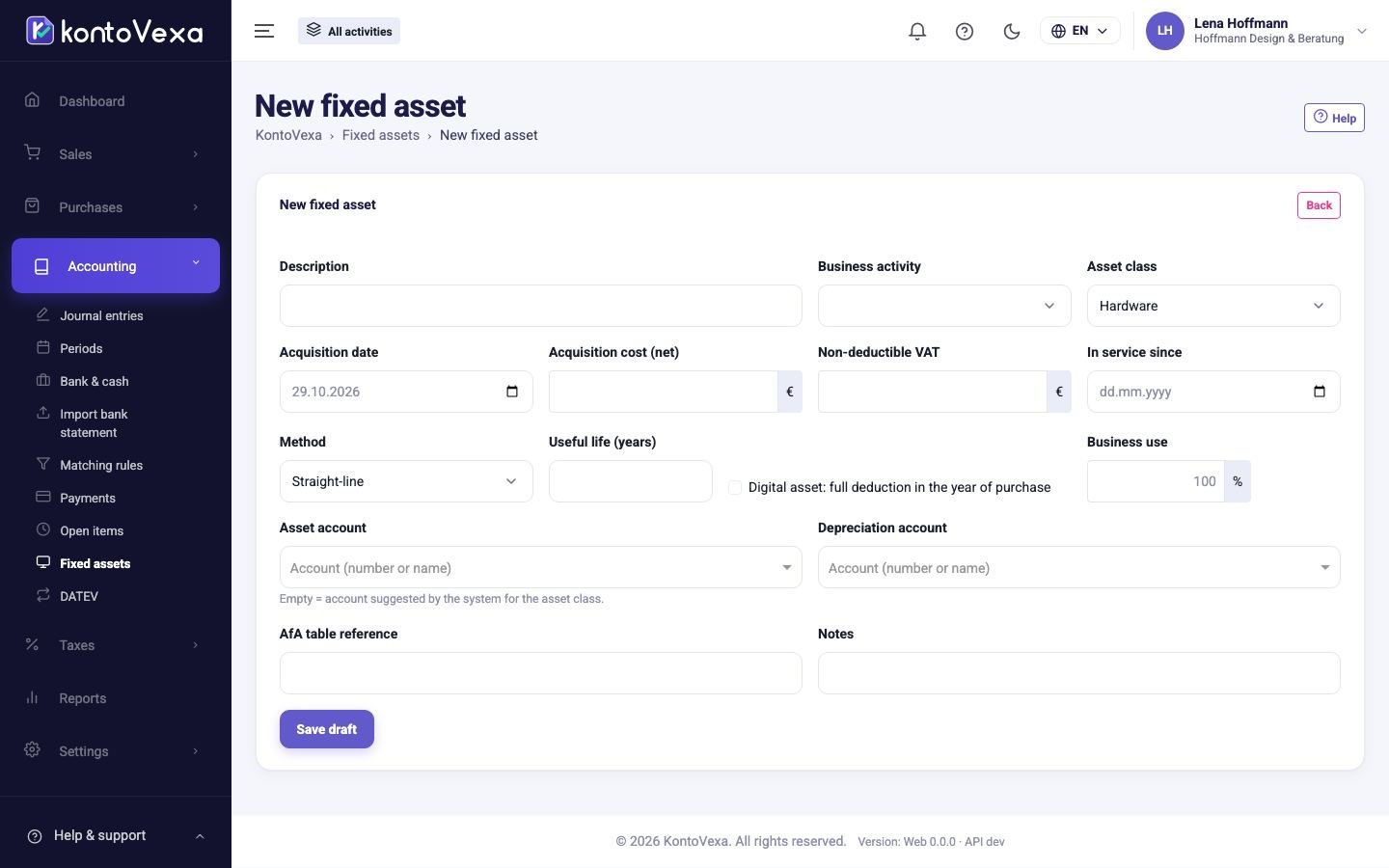
| Field | Meaning |
|---|---|
| Non-deductible VAT | Input VAT you do not get back from the tax office, for example as a small business. It increases the acquisition cost. |
| In service since | Depreciation starts in this month if it differs from the acquisition date. |
| Useful life (years) | How many years the asset will be used. KontoVexa suggests the value from the official depreciation table; you can note the source under AfA table reference. |
| Digital asset: full deduction in the year of purchase | For computer hardware and software: deduction of the full cost in the year of acquisition. |
| Business use | If you also use the asset privately, only this share of the depreciation counts as a business expense. |
| Asset account / Depreciation account | Leave empty: KontoVexa uses the matching accounts of the asset class. |
Post the depreciation
- In the list, click Depreciation run.
- Choose the Year and, under Month, a month or Whole year; with several activities, also the business.
- Click Dry run. KontoVexa shows which depreciation would be posted for each asset without posting anything.
- If the amounts are right, click Post depreciation and confirm.
For each asset and each period an entry with the source Depreciation is created, dated on the last day of the period. Depreciation already posted is skipped, so you can safely repeat the run. Whether depreciation is posted monthly or yearly is set on the activity.
Dispose of a fixed asset
When you sell, scrap, lose or withdraw an asset for private use:
- Open the asset and click Dispose / sell.
- Under Type of disposal choose, for example, Sale, and the Disposal date.
- For a sale enter the Sale price (net), for a private withdrawal the Market value (Teilwert).
- Check under What will be posted what will be posted, and click Dispose of the asset.
KontoVexa posts the depreciation pro rata up to the month of disposal and the remaining book value as a business expense. For a sale, an invoice draft with price and tax code is created, which you check and issue under Invoices. An asset in a pooled item is not written off individually; the pool continues unchanged.
Special depreciation and investment deduction (§ 7g)
Below a saved fixed asset, KontoVexa shows up to three sections relating to § 7g EStG:
- Investment deduction available (IAB): appears if the business has an Investitionsabzugsbetrag (investment deduction) with a remaining balance. How to assign it to the asset is explained under Investment deductions (IAB).
- Extra depreciation for small businesses (§ 7g): the special depreciation for movable assets of small businesses.
- Use condition (§ 7g Abs. 4 / Abs. 6 Nr. 2): whether the asset is used as required until the end of the following year.
To plan the special depreciation:
- Under Use of the asset, choose the use and confirm Used in a business establishment in Germany.
- For each year, enter the amount you want under Extra depreciation. KontoVexa shows the maximum amount and suggests taking it in the year of acquisition; nothing is applied automatically.
- If, according to the finalised Anlage EÜR, the profit of the year before the acquisition is above the limit, confirm that the profit relevant for the tax office does not exceed it — otherwise the special depreciation is not possible.
- Click Save extra depreciation. The depreciation plan is recalculated and shows the Special depreciation § 7g rows. You remove the plan again with Remove.
Vehicles and private use (1 % rule)
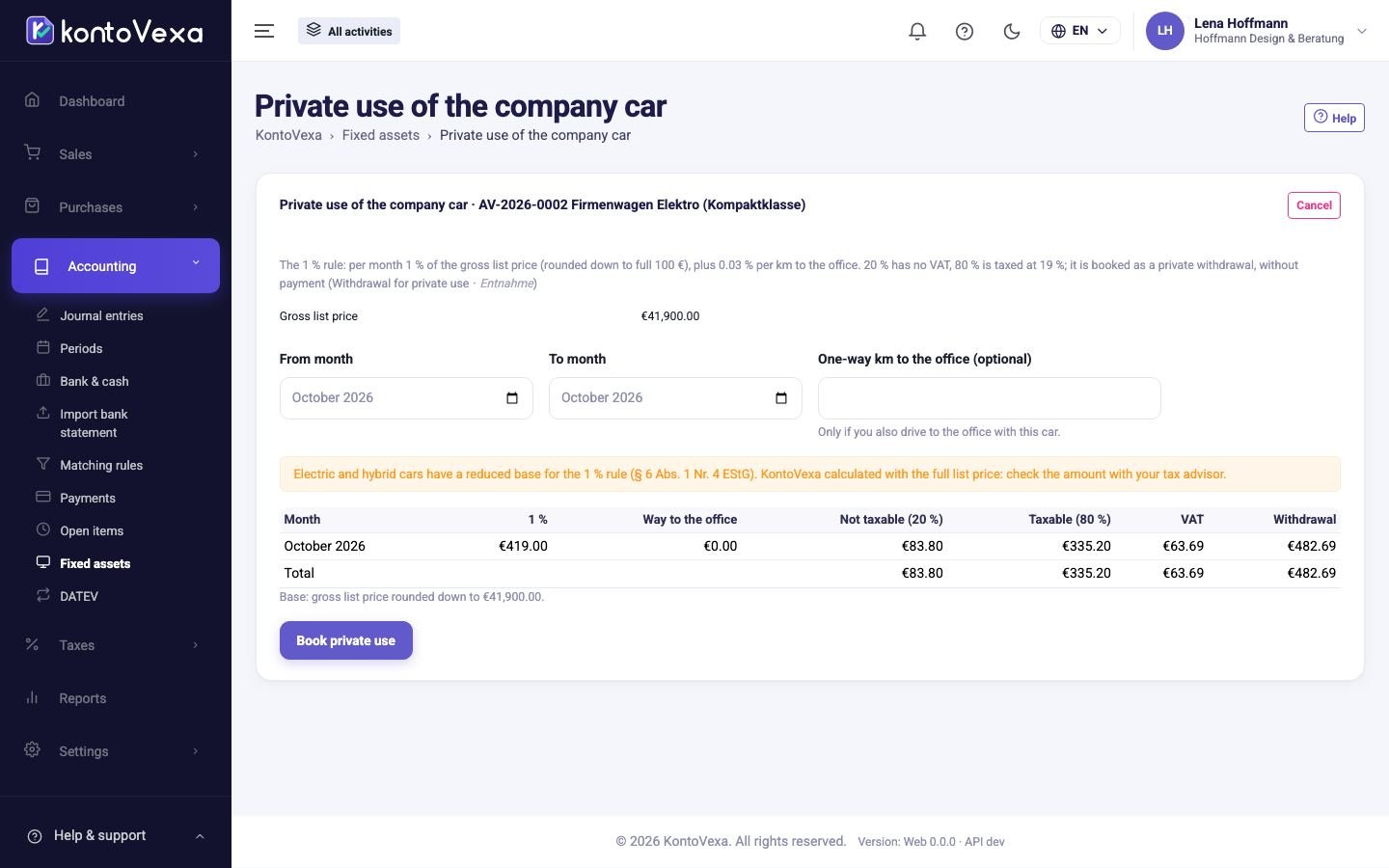
For an asset of class Vehicle you also enter Gross list price and Fuel type. An activated vehicle shows the section Vehicle and private use with the months of private use already posted.
- In that section, click Book private use.
- Choose From month and To month (twelve months at most). If you also drive the vehicle to your place of business, enter the one-way distance in km.
- Check the preview per month and click Book private use.
KontoVexa posts one withdrawal (Entnahme) per month, without a payment. To correct a month, cancel it on the vehicle with Reverse and post it again.
Statuses
| Status | Meaning |
|---|---|
| Draft | Recorded, no fixed plan yet. All details can be changed. |
| Active | Activated; the depreciation plan is fixed and posted with each depreciation run. |
| Fully depreciated | Fully written down; the asset is still in use. |
| Disposed | Sold, scrapped, lost or withdrawn. |
Good to know
- Fixed assets and their depreciation flow into the Fixed asset schedule (AVEÜR) and the Cash-basis profit statement (EÜR).
- After activation, the details of an asset can no longer be changed.
- Creating assets, posting depreciation and disposing of assets are separate permissions.