Suppliers
Manage suppliers with their address, VAT ID, bank accounts and the defaults used when you record their documents.
Under Suppliers you manage every company and person you buy from. KontoVexa uses this data when you record expenses, when you pay and for the tax classification: the country tells whether a supplier is based in Germany, in another EU country or in a non-EU country.
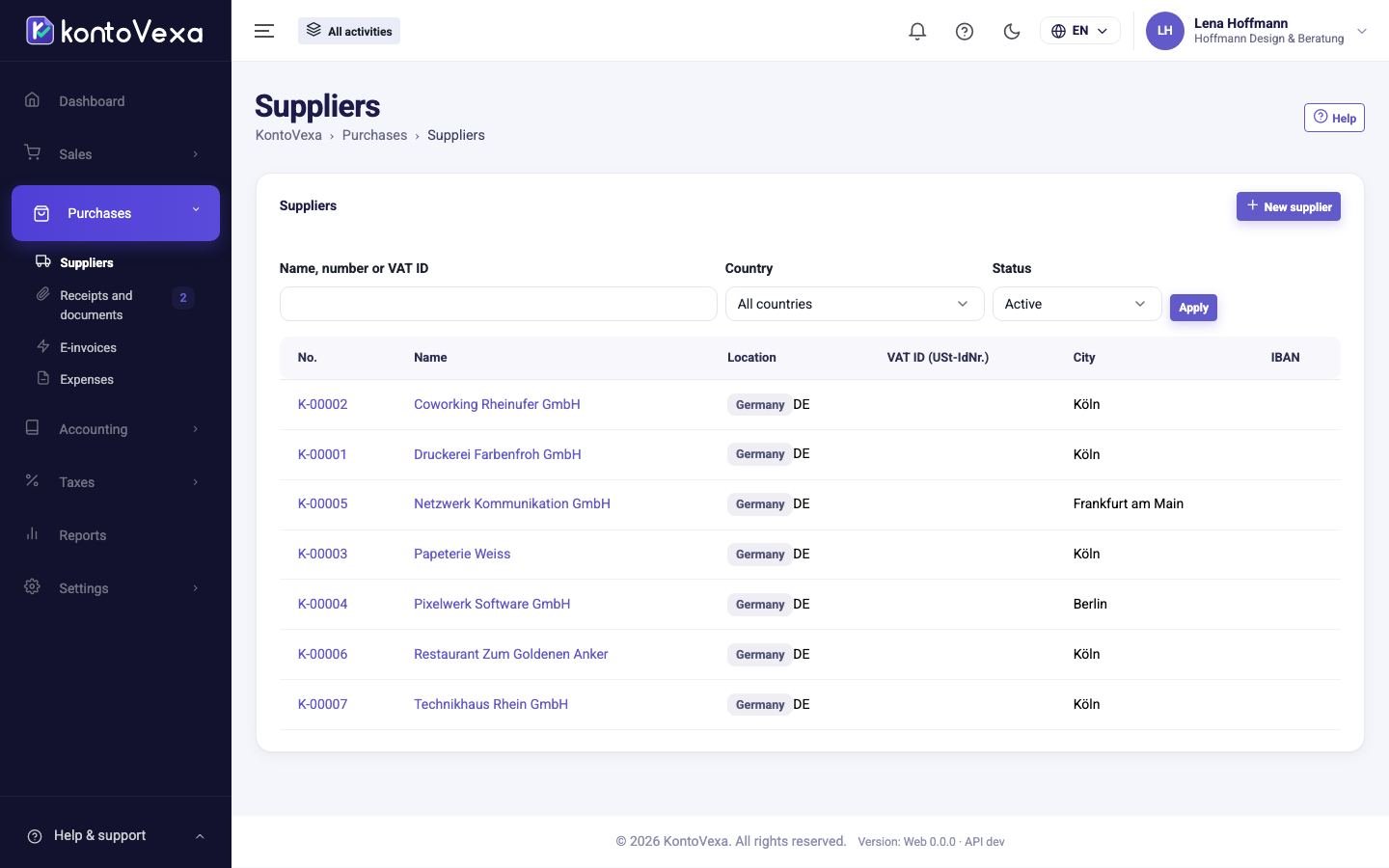
Find suppliers
- Type a name, a supplier number or a VAT ID in Name, number or VAT ID.
- If needed, narrow the list with Country and Status. By default you only see active suppliers; with All the deactivated ones appear too.
- Click Apply.
The column Location shows Germany, EU or Non-EU with the country code. The IBAN is only shown shortened in the list.
Create a supplier
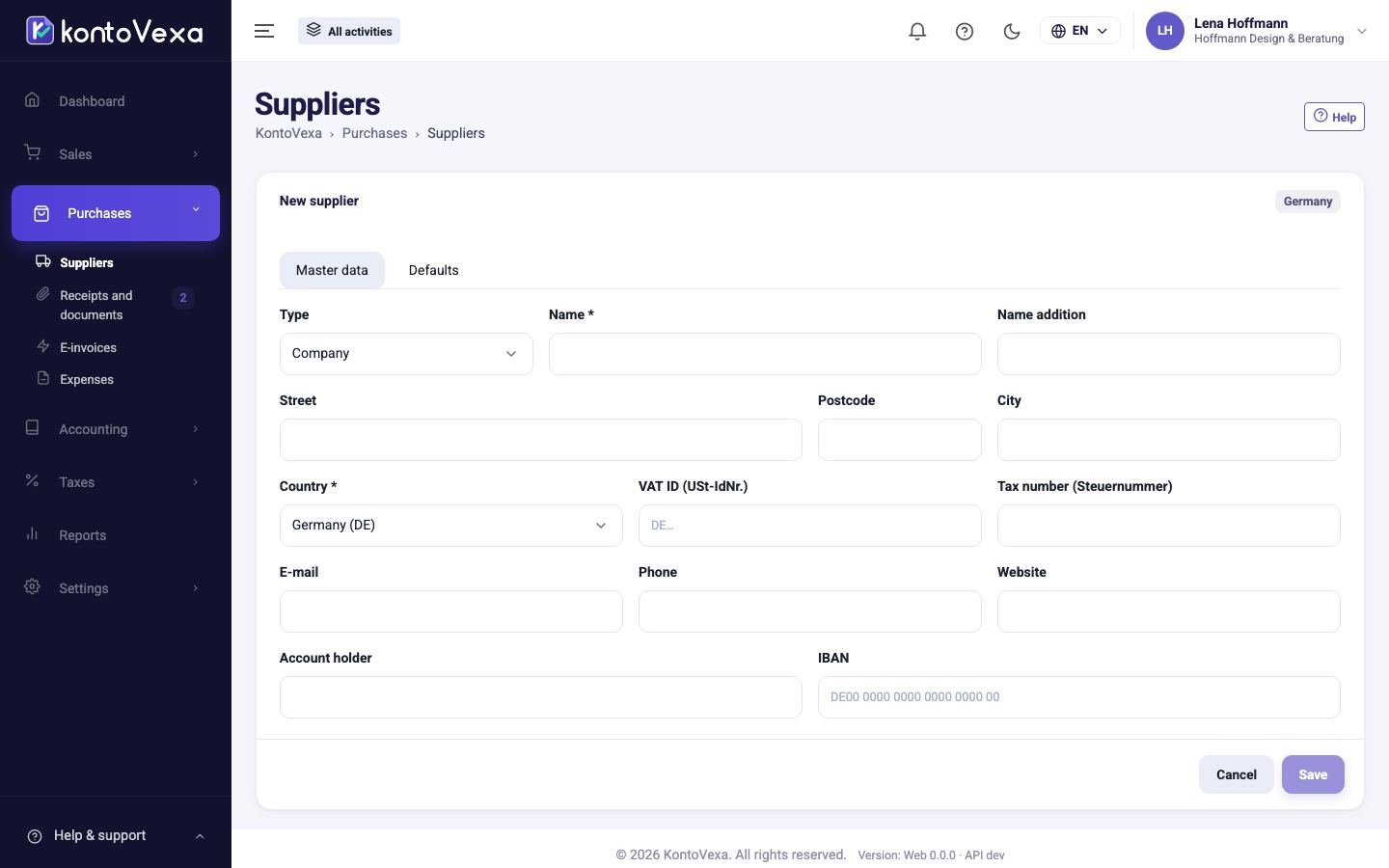
- Click New supplier.
- In the field Type, choose between Company and Person.
- Fill in Name and Country; both are required. The badge next to the title shows straight away how KontoVexa classifies the supplier's location.
- Add the address, VAT ID (USt-IdNr.), Tax number (Steuernummer), the contact details and, if you pay by bank transfer, Account holder and IBAN.
- If needed, set the defaults in the tab Defaults (see below).
- Click Save. KontoVexa assigns the supplier number automatically.
Defaults for recording documents
The values in the tab Defaults are filled in automatically when you record a document from this supplier. You can still change them there at any time.
| Field | Meaning |
|---|---|
| Default account | The account the expense is posted to, for example telephone or office supplies. |
| Default tax treatment | The tax code that is suggested, for example 19 % input VAT. |
| Default activity | Only with several activities. With Split between activities… you spread the costs over several activities by percentage. |
| Business share % | The share used for the business, for example 50 for a mobile contract you also use privately. The rest is posted as private share. |
| Deductible input VAT % | Which share of the input VAT is deducted. |
| Default document type | For example Receipt for a petrol station. |
| Payment terms (days) | The payment term the supplier grants you. |
| Cash discount % | Early-payment discount the supplier grants; its period is in Cash discount days. |
The supplier view
In the list, click a supplier's number or name.
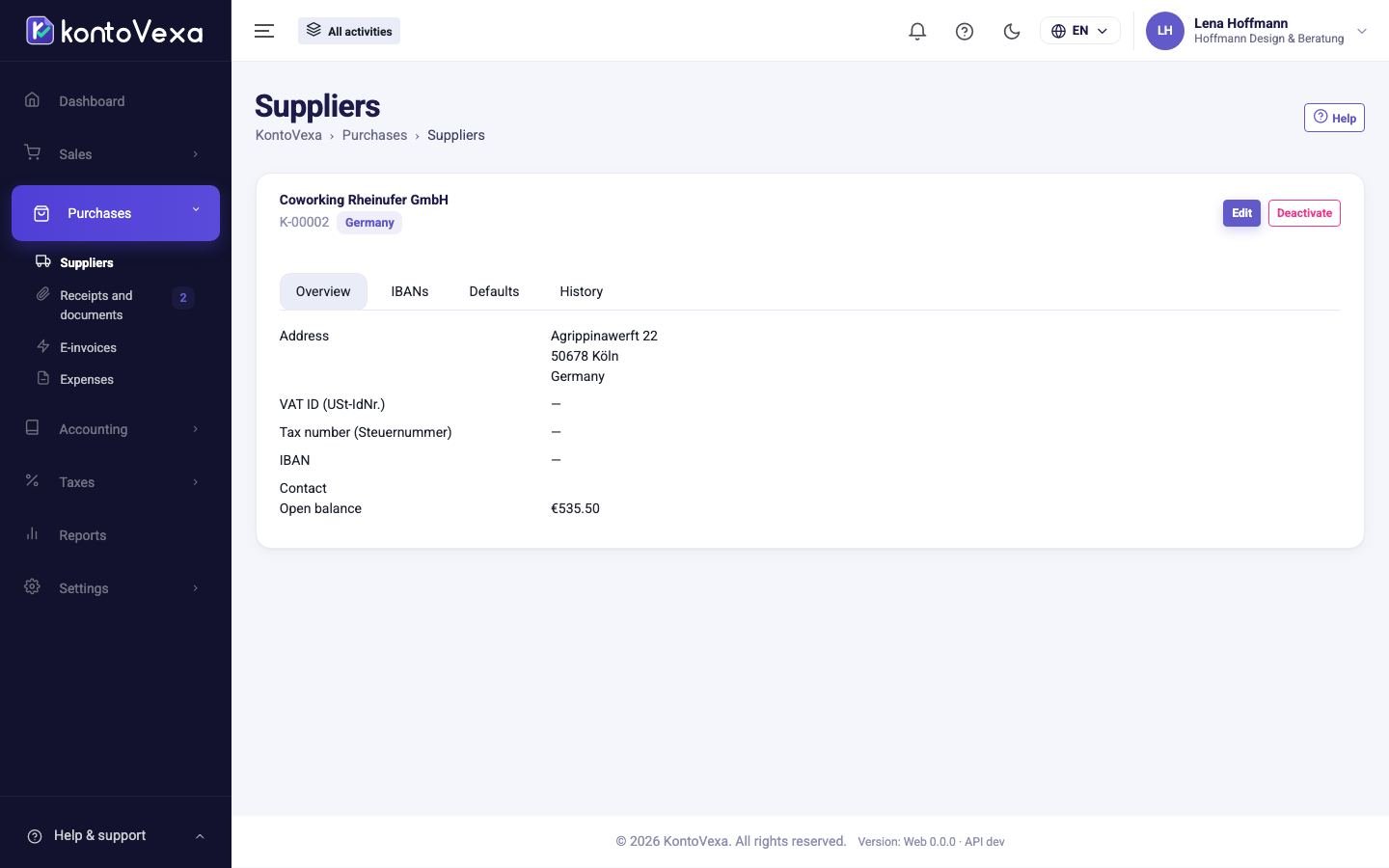
- Overview: address, tax data, main IBAN, contact, notes and the Open balance, i.e. the posted expenses not yet paid. Tax number and IBAN are masked; with Show you see the full number. Each such reveal is recorded in the audit log.
- IBANs: all bank accounts of the supplier. Add another IBAN with BIC and Label, or make one the Main account with Make main account. Each IBAN shows where it came from, for example From E-Rechnung or From bank import.
- Defaults: the defaults for recording documents.
- History: the gross totals per year, the expenses and the payments to this supplier.
Good to know
- You can only delete a supplier as long as no documents exist for it. After that, only Deactivate is possible; Activate brings it back.
- An IBAN can only be deleted if it has not been used in any payment yet.
- When editing, a stored tax number is kept if you leave the field empty. You enter the IBAN in the form only when creating the supplier; after that you manage bank accounts in the tab IBANs.
- Viewing and editing suppliers are separate permissions. Without the edit permission, the buttons to create, change and delete are missing.