Receipts and documents
Upload or photograph receipts, collect them in the document inbox and record them one after another as expenses.
Receipts and documents is the letterbox for your purchase documents: invoices, receipts and e-invoices. Upload the files as soon as you have them and record them later, in peace, as expenses. The number next to the menu item shows how many documents are still waiting to be recorded.
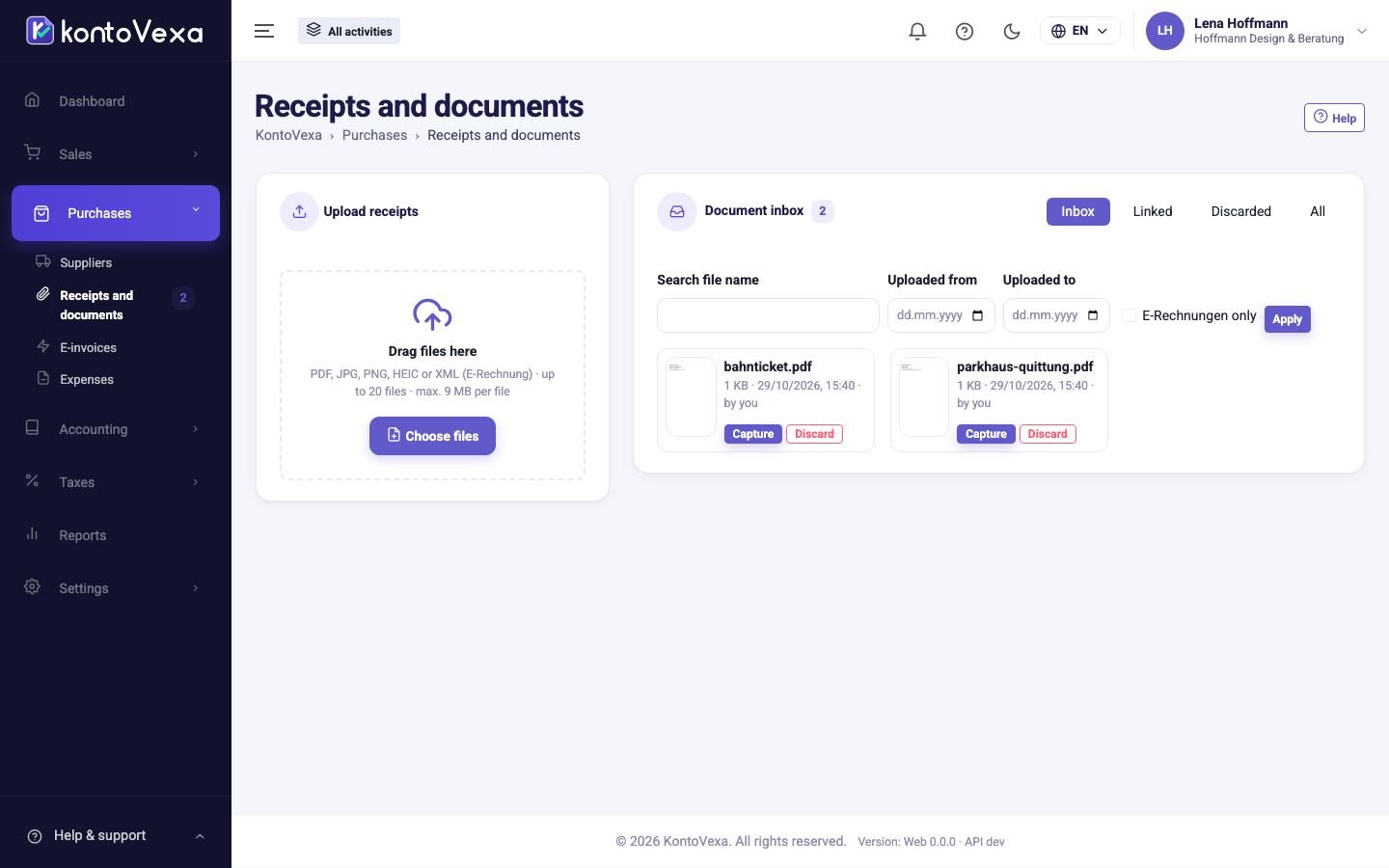
Upload documents
- Drag the files into the area Upload receipts or click Choose files.
- On a smartphone, tap Photograph receipt; the camera opens.
- Follow the progress of each file in the list below. A failed upload can be started again.
PDF, JPG, PNG, HEIC and XML (e-invoice) are allowed, up to 20 files at once and at most 9 MB per file. KontoVexa shrinks large photos before uploading them. If you have already uploaded the same file, a notice with Open appears so that you can find the existing document.
Go through the document inbox
The tabs sort the documents:
- Inbox: not recorded yet.
- Linked: already assigned to an expense; a link leads to the expense or the draft.
- Discarded: set aside, with the reason given.
- All: all of them together.
Use Search file name, Uploaded from and Uploaded to to search. E-Rechnungen only shows only documents marked E-Rechnung. Then click Apply.
Record a document
- Click Capture on the document. The document is shown next to the form; you can zoom, rotate and download it. For an e-invoice, switch to E-Rechnung view.
- For an e-invoice the card E-Rechnung data appears as well. These values come from the invoice's XML and are binding; Copy to form transfers them into the form.
- Complete or correct supplier, account, tax treatment, amounts and date. The fields are the same as for an expense.
- Click Post and next (Ctrl+Enter). The expense is posted and the next document from the inbox opens.
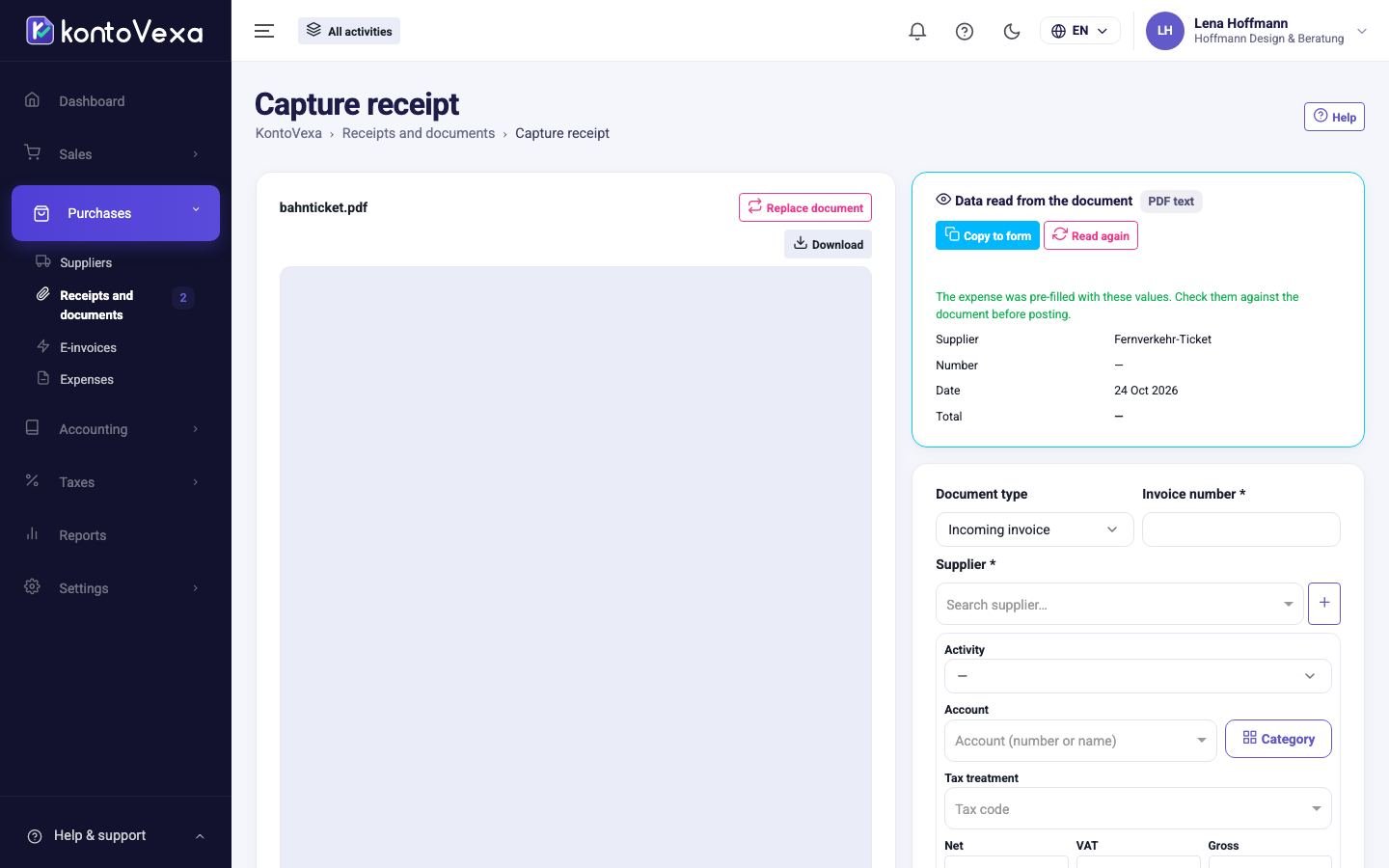
You don't have to finish everything at once: Save draft saves the current state as a draft, Next receipt (Alt+→) jumps to the next document in the inbox. Delete draft deletes a draft again; the file then goes back to the document inbox. If the wrong file is attached, swap it with Replace document.
Discard a document
If a file does not belong in the bookkeeping, for example a duplicate scan, click Discard and enter a reason. The file is not deleted: it stays archived until the end of the legal retention period and appears in the tab Discarded.
Good to know
- Uploading, viewing and recording are separate permissions; without the upload permission the area Upload receipts is missing.
- An e-invoice you upload here is recorded like any other document. For checking its format and content there is the dedicated area E-invoices.