Incoming payments
See your customers' payments and match new incoming payments to open invoices.
The Payments received menu item opens the payment list from Accounting, filtered to the money your customers have paid you. Here you see when each invoice was paid and whether an amount has not yet been matched to an invoice. The page header says Payments because it is the same list; Payments describes all payment types in detail.
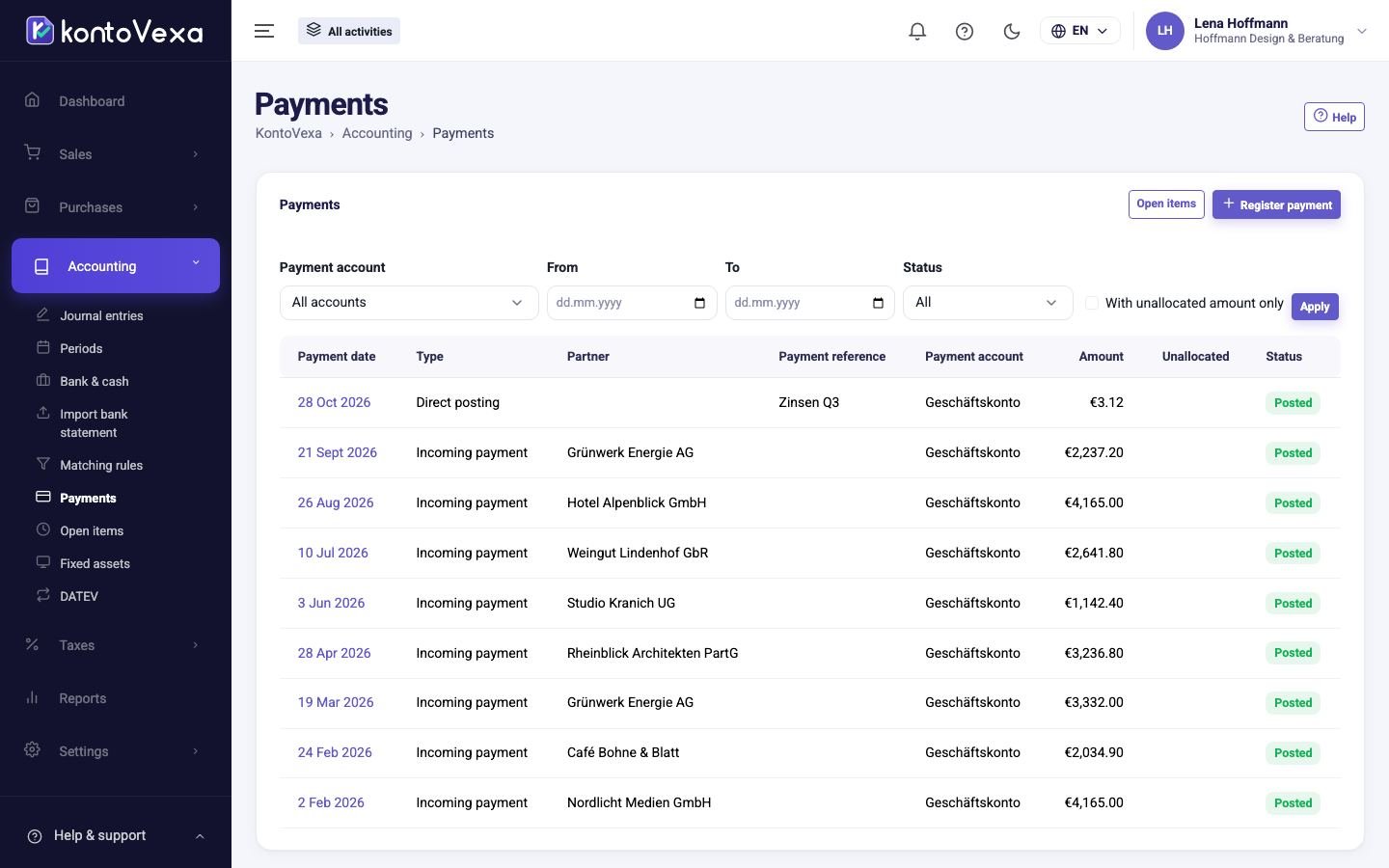
Find incoming payments
- If needed, narrow the list down by Payment account, a period (From / To) or Status.
- Tick With unallocated amount only to see only payments of which part has not been matched to an invoice.
- Click Apply.
The Payment reference column shows what the customer entered with the transfer, usually the invoice number. An amount in Unallocated means the customer paid more than the matched invoices, or the right invoice is still missing. Click the date to open the payment with its allocations and its journal entry.
Record an incoming payment
A customer has paid by transfer or in cash, and you do not import bank statements? Then the easiest way is to record the payment from the invoice or the receivable, so that it is matched correctly straight away:
- Open the invoice under Invoices and click Register payment. Or, under Receivables, tick one or more invoices of the same customer and click the button for recording the incoming payment.
- The Register receipt editor opens with the customer and the invoice. Choose the Payment account that received the money and the Payment date.
- Under Amount received, enter the amount you actually received.
- Click Post payment.
The invoice then becomes Paid or Partially paid, and the amount disappears from the open receivables.
If the customer pays less than the open amount, KontoVexa offers to post the difference as a cash discount. If they pay more, you can treat the surplus as an Record the unallocated amount as an advance payment (Anzahlung).
Record revenue without an invoice
Not all money comes from an invoice: interest, insurance compensation, subsidies, donations, gifts in kind, other income or refunds from a supplier without a credit note or from the tax office. Record these under Revenue without invoice:
- Under What did you receive?, choose the kind of revenue and answer its question, for example the VAT rate or whether a subsidy is taxable.
- Enter Amount received (gross), the date and the account (bank or cash).
- Attach the receipt if you have one. Without a receipt, KontoVexa creates a self-made receipt (Eigenbeleg) as a PDF.
- Click Post revenue.
KontoVexa posts the revenue as an incoming payment to the account of the chosen kind; you reverse it like any payment. If the money arrives with a bank statement, assign it directly in the bank reconciliation.
Good to know
- You do not change a posted payment; you reverse it in its detail view with Reverse payment. The invoices are then open again.
- The Register payment button at the top of the list opens the editor for payments to suppliers. So always record customer payments from the invoice or the open receivables, as described above.
- Everyone with read access to payments can see them; only users with write access can record and reverse them.