Invoice corrections
Check, issue and send invoice corrections and cancellation invoices and keep track of amounts to refund.
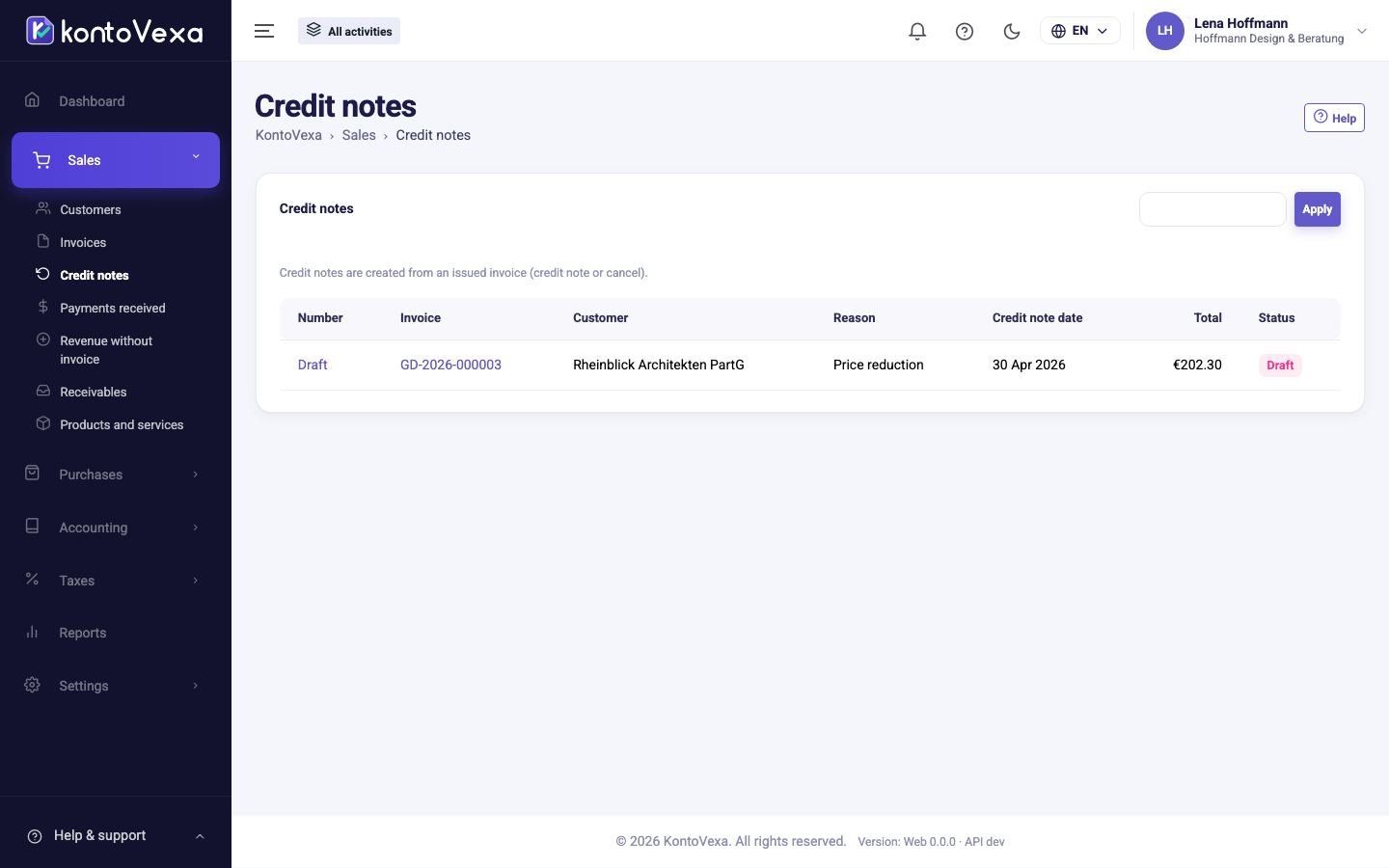
Under Credit notes you find all documents with which you cancel an issued invoice in full or in part. They always arise from an invoice or a return; here you check, issue and send them.
How an invoice correction arises
- Partial correction: in the issued invoice with Credit note. You choose the reason, the date and, per line, the Quantity to credit; KontoVexa creates a draft. See Invoices.
- Cancellation: in the issued invoice with Cancel invoice. KontoVexa creates the cancellation invoice for the full amount and issues it immediately.
Find invoice corrections
Type a number, a customer or a text into Number, customer or text and click Apply. For each correction, the list shows the Invoice, the Reason and the amount. Clicking the number opens it.
Issue a draft
- Open the draft.
- Check the Reason and the Credit note date. Under Text on the document you can explain to the customer why the invoice is corrected.
- With Preview you see the PDF in advance. Save changes with Save draft.
- Click Issue and confirm the dialog.
The correction gets a number from its own number range, is posted with its date and can no longer be changed afterwards. The PDF is created in the background; after that, Download PDF and Send are available. If the invoice was sent as an e-invoice, the correction uses the same format.
Remove a draft you do not need with Delete. The invoice then remains unchanged.
Statuses
| Status | Meaning |
|---|---|
| Draft | No number and not posted yet; can be changed and deleted. |
| Issued | Issued and posted. The customer had already paid more than remains open after the correction and is owed a refund. |
| Settled | Settled: the amount was offset against the open invoice or refunded in full. |
If the invoice was still open, the correction simply reduces the open amount and is Settled right away. If the customer has already paid, record the refund under Payments and allocate it to the invoice correction; it then changes to Settled.
Good to know
- An invoice can be corrected at most up to its full amount.
- Issuing, deleting and sending require the permission to issue invoices. With read access you see the list and the PDFs.